
Office Color Consistency Comparison: Best Printers for Marketing
By Priya Natarajan • 17th May
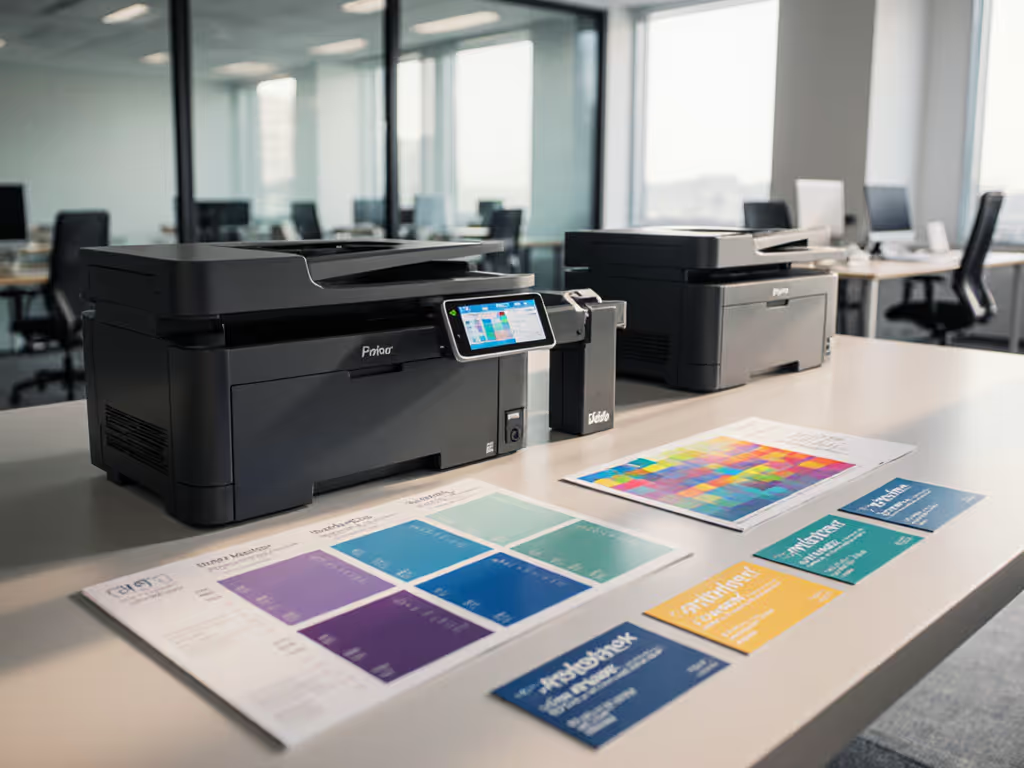
When you run an office color consistency comparison or a marketing department printer comparison, you're not really choosing hardware; you're deciding how reliably your brand appears on every flyer, proposal deck, and trade-show handout for the next 3-5 years. And that means you're also deciding your risk exposure: missed deadlines, reprints, and color disputes with clients.
Total cost counts every jam, callout, and empty shelf.
This FAQ deep dive walks through how to evaluate printers for marketing use in a way that finance, IT, and marketing can all sign off on (grounded in scenario analysis, not brochure promises).
What does "color consistency" actually mean for marketing teams?
For marketing, color performance has three dimensions:
- Accuracy - How close printed colors are to the intended values in your brand guidelines (Pantone/CMYK/RGB).
- Consistency over time - Whether the same file looks the same next week, after a driver update, or when toner is low.
- Consistency across devices and sites - Whether your HQ printer, branch office MFP, and outsourced run all look like the same brand.
In practice, color issues show up as:
- Logos looking greener or redder on different printers
- Skin tones shifting between "healthy" and "sunburned" depending on device
- One batch of brochures looking dull compared to last month's
A serious brand color consistency testing approach treats this like any other quality-control process:
- You use the same test files across all candidate printers.
- You print them on the real papers you'll use in production.
- You measure results side by side (ideally with a spectrophotometer, but at least with controlled visual comparison under neutral light).
Without that, "this one looks nicer" is just anecdote. If you're new to ICC profiles and calibration, start with our printer color management guide.
How should we run an office color consistency comparison across our fleet and new options?
Think of it as a mini acceptance test. Here's a structured way to do it.
1. Build a small, repeatable test pack
Include:
- Brand swatch sheet - Your primary and secondary brand colors as large patches and gradients.
- Logo sheet - Logos on white and on dark backgrounds.
- Real collateral - A 2-4 page sales sheet or mini-brochure with photos, gradients, and small text.
- Data graphics - Charts and tables with your brand colors plus neutrals.
Use the exact same PDFs on every device. For a refresher on resolution settings and how they impact text sharpness and toner use, see our Office DPI settings guide.
2. Standardize settings
- Turn off any "vivid" or "photo enhancement" modes unless you document them.
- Use the same driver settings on each pass (paper type, quality level, color profile).
- For networked devices, test through your real print path (print server, cloud print, or direct IP), not just USB.
3. Test across conditions
For each candidate printer (and at least one of your current devices):
- Cold start vs. warmed up: First job of the day and after 20-30 pages.
- Different paper types: Your house uncoated stock plus any marketing gloss/matte you commonly use.
- Duplex vs. simplex: Check if front and back match in density and color cast.
This is where specialty paper color accuracy often breaks; a printer that looks fine on copy paper can drift badly on a heavy 120-160 gsm gloss. For step-by-step setup across labels, envelopes, and heavy stocks, use our specialty media printing guide.
4. Score, don't just eyeball
If you have a color-savvy designer, involve them, but give them a simple scoring grid:
- Brand color match (1-5)
- Skin tones (1-5)
- Small text clarity (1-5)
- Banding or artifacts (1-5)
- Duplex front/back match (1-5)
Capture comments and keep print samples. This becomes your evidence pack when someone later asks, "Why didn't we buy the cheaper one?"
Which technologies are most stable for marketing color: inkjet vs. laser vs. light production?
From a cost and risk perspective, you're not just choosing a technology; you're choosing failure modes. Here's a scenario analysis view.
Office Inkjet AIOs (like business-class OfficeJets)
Pros:
- Generally stronger color gamut and smooth gradients for the price
- Good for mixed work: marketing proofs + everyday office docs
- Lower entry cost; compact footprint
Risks/Trade-offs:
- Heavier reliance on vendor cartridges and firmware; third-party ink can introduce major color drift and supply risk
- Ink on heavy or coated stocks can smudge if settings are wrong
- Page yields are sensitive to coverage; marketing pieces are usually heavy coverage, so "cost per page" claims can be optimistic
A current example in this class is the HP OfficeJet Pro 9135e, an AI-enabled business inkjet with:
- Up to 20 ppm color / 25 ppm black
- 500-sheet capacity (two 250-sheet trays)
- Automatic duplex printing and duplex scanning
- Up to 4800 x 1200 optimized color resolution on HP photo papers
It's aimed at offices producing professional-quality color documents (presentations, flyers, small marketing runs) while also handling scan/copy/fax. In testing, devices like this tend to deliver strong color for proofs and short runs, as long as you lock in paper settings and keep firmware and drivers under change control.

HP OfficeJet Pro 9135e All-in-One Color Printer
AI-enhanced color inkjet for professional documents with strong security features.
$329.89
Print SpeedUp to 20 ppm color / 25 ppm black
Print SpeedUp to 20 ppm color / 25 ppm black
Pros
HP AI ensures perfectly formatted web/email prints, eliminating waste.
Integrated HP Wolf Pro Security protects against cyber threats and malware.
Cons
Mixed user reports on functionality, print quality, and setup ease.
Frequent connectivity drops and paper jam issues reported by users.
Customers report mixed experiences with the printer's functionality, with some saying it performs well while others mention it stops working. The print quality and speed receive mixed feedback, with some finding it good and fast while others report poor results and slow performance. Setup experiences are inconsistent, with some finding it easy to set up while others struggle with the process. Customers report significant connectivity issues, with the printer frequently losing WiFi connection, and experience problems with paper jams. Value for money is also mixed, with some finding it great for the price while others consider it a waste of money due to expensive ink cartridges.
Customers report mixed experiences with the printer's functionality, with some saying it performs well while others mention it stops working. The print quality and speed receive mixed feedback, with some finding it good and fast while others report poor results and slow performance. Setup experiences are inconsistent, with some finding it easy to set up while others struggle with the process. Customers report significant connectivity issues, with the printer frequently losing WiFi connection, and experience problems with paper jams. Value for money is also mixed, with some finding it great for the price while others consider it a waste of money due to expensive ink cartridges.
Office Color Laser/LED
Pros:
- Very stable on plain and light coated stocks
- Less sensitive to humidity and handling; fused toner doesn't smudge
- Predictable yields; good for charts, logos, and mixed text/graphics
Risks/Trade-offs:
- Can struggle with smooth gradients and subtle tones vs. inkjet or production devices
- Heavier media and envelopes can curl or show gloss variation
- Fuser and drum costs can spike TCO if duty cycle assumptions are wrong
A3 Departmental / Light Production Printers
Pros:
- Designed for color workflow standardization across teams; better calibration tools
- Support for heavier media, larger sheet sizes (up to 12x18), and inline finishing (staple, fold, booklet)
- Stronger service SLAs and on-site repair options
Risks/Trade-offs:
- Higher upfront or lease cost
- Training and workflow setup required (color profiles, queues, print rules)
For brand-critical collateral beyond the occasional flyer, marketing teams usually anchor their fleet around one well-specified A3/light-production device, and use office inkjets/lasers for drafts and day-to-day color.
In scenario analysis, the "cheapest per-page" device often loses once you price reprints, downtime, and color disputes.
Can a single office printer reliably handle both marketing collateral and everyday jobs?
Sometimes yes, but you need to be explicit about limits.
Works well when:
- You're an SMB marketing team printing:
- Proof sets for client reviews
- Small runs (50-200 copies) of flyers or one-pagers
- Internal color docs and decks
- Larger runs are outsourced to a print shop or in-plant
Breaks down when:
- You expect thousands of color pages per week at high coverage
- You need finishing (folding, saddle-stitch) in-house
- You regularly switch between many media types and sizes
If you do consolidate onto a single device, build guardrails:
- Separate trays: One tray locked to your standard office paper, another to your marketing stock. On a two-tray device like the OfficeJet Pro 9135e, that's a practical split.
- Print rules: Use your print management system to force:
- Duplex by default
- Black-and-white for internal email prints
- Color approvals for high-coverage jobs
- Capacity planning: Compare real monthly volumes against the device's recommended duty cycle with a simple sensitivity analysis (e.g., what if volumes spike 30% for a campaign quarter?).
If the model fails under these scenarios (jams, service calls, or queues backing up) you don't have a printer problem; you have a fleet sizing problem.
How do different printers handle specialty media and specialty paper color accuracy?
Special media is where marketing work goes to die, or shine.
Key questions to ask vendors and test yourself:
- Supported media list - Not just "up to 300 gsm," but which weights and finishes are officially supported from each tray and the bypass.
- Profiles/presets - Are there built-in profiles for:
- Coated gloss/matte
- Heavy cardstock
- Labels and envelopes
- Real-world tests - Run your brand swatches and a real collateral file on:
- Your standard uncoated office stock
- Your chosen marketing gloss/matte stock
- Any label or postcard stock
Watch for:
- Color shifting more on heavy stock than plain
- Ink or toner not fully fusing on coated papers
- Curl, especially on duplex heavy media
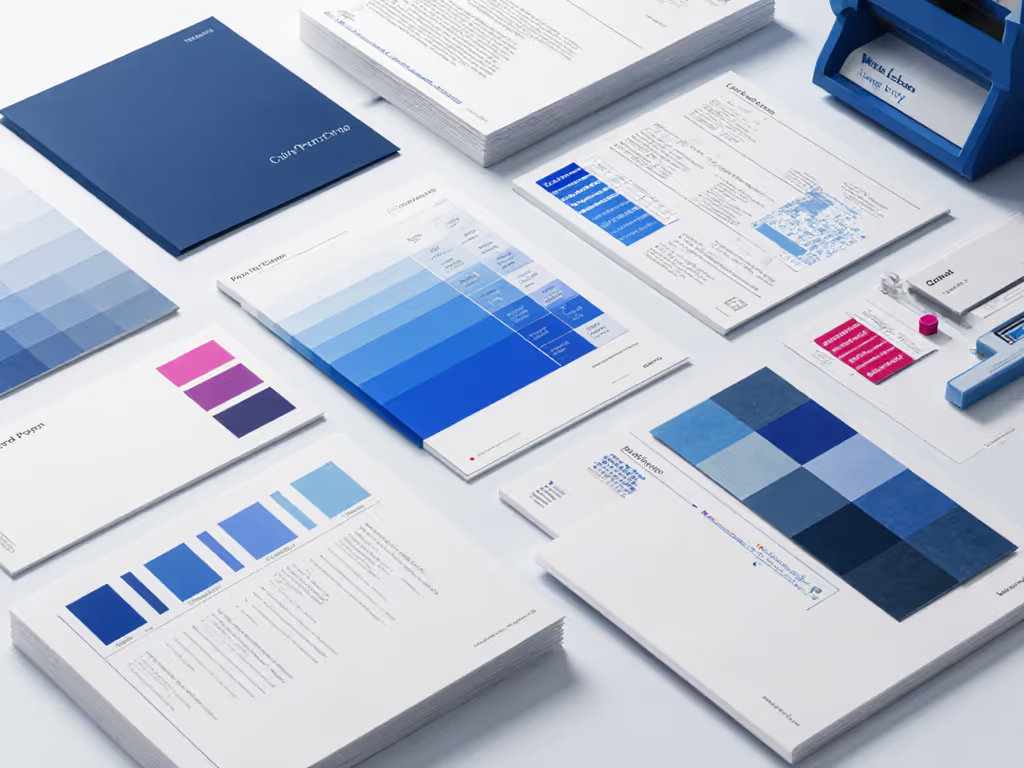
For office inkjets (including devices like the OfficeJet Pro 9135e), the big risks are:
- Incorrect paper type selection - Leads to over-inked, muddy prints or banding
- Slow drying on gloss - Stacks can offset (ink transferring between pages) if you don't allow enough drying time
For lasers/A3 devices, watch for:
- Gloss differential - Solid brand blocks looking shinier/duller than surrounding areas
- Registration issues - Duplex jobs where front/back alignment matters (e.g., postcards)
Your marketing team should sign off on specialty paper color accuracy before you commit to any long-term contract.
What about large format color stability for posters and banners?
Most office printers, including the HP OfficeJet Pro 9135e class, top out around letter/legal/A4 sizes. If you need:
- Posters
- Roll-fed banners
- Trade-show graphics
...you're in the world of wide-format inkjet. Here the keyword is large format color stability, consistency across long prints and between jobs.
To keep your office and large-format prints aligned:
- Standardize on a single set of color profiles from your design tools through to your RIP/driver.
- Run the same brand swatch test on the wide-format device and your office printer.
- Agree internally: office device = proof; wide format = final. Don't expect them to be pixel-identical, but they should be recognizably the same brand.
Typically, marketing teams use:
- Office A4/A3 device - Fast proofs, internal review copies, small signage.
- Wide-format device or external vendor - Final posters, banners, event materials.
The trick is process discipline, not chasing a unicorn printer that does everything.
How do we factor contracts, supplies, and SLAs into a marketing department printer comparison?
Color consistency is pointless if you can't get supplies or service when a campaign drops. This is where I spend most of my time: translating marketing needs into enforceable terms.
Focus on these line-item breakdowns when comparing proposals: For a complete framework on long-term expenses beyond sticker price, see our total printer ownership cost guide.
1. Supplies and firmware
- Multiple supply sources - Are you forced into one vendor program, or can you source toner/ink from at least two authorized channels?
- Firmware behavior - Does the contract language clearly state whether firmware updates can block third-party or older cartridges without your consent?
- Auto-replenishment - Helpful, but demand clarity on:
- Who owns the data
- How minimum stock levels are set
- What happens if there's a backorder during a campaign
Subscription ink services (like HP's Instant Ink offered with the OfficeJet Pro 9135e) can stabilize costs, but marketing volumes are often spiky. Run a sensitivity analysis: What happens to cost if you exceed the included pages by 25-50% for a couple of months?
2. Service and uptime
For marketing-critical devices, contracts should specify:
- Response and resolution times - Not just "next business day," but practical windows and escalation paths.
- Loaner or swap options - What happens if color quality is degraded but the device technically "prints"?
- Preventive maintenance - Scheduled around campaign calendars when possible.
3. Color performance expectations
Most contracts don't talk about color at all. Push for at least:
- A documented acceptance test based on your color test pack
- Alignment on what constitutes "unacceptable color deviation" (could be qualitative if you don't have measurement tools)
- A clear path for remediation: recalibration, service visit, or device replacement
This is where "Total cost, not sticker price." comes alive. The ink or per-page rate is one line; the risk of color failure during a launch is another.
Where does the HP OfficeJet Pro 9135e fit in a marketing fleet?
Using all the above criteria, here's how I position a device in this class.
Best fit:
- SMB or departmental marketing teams needing:
- Reliable office color proofs and internal review copies
- Occasional short-run flyers, one-pagers, and mailers on supported weights
- Integrated scan/copy/fax into Microsoft 365 or Google Workspace workflows
- Environments with mixed OS (Windows/macOS/ChromeOS) where an app-centric approach (like HP Smart) plus standard IPP/driver support covers most needs.
Strengths for marketing use:
- Two 250-sheet trays support a simple split: office stock vs. marketing stock.
- Up to 4800 x 1200 optimized color can produce crisp images and fine text for proofs.
- Fast enough (up to 20 ppm color) that a 100-page proof set won't block the queue for an hour.
Risks/considerations:
- It's still an office inkjet (not a production press). Don't plan thousands of heavy-coverage mailers per week on it.
- Subscription ink (if you enable it) can be cost-effective but demands careful plan sizing and monitoring against real coverage.
- As with any vendor-controlled ink ecosystem, continuity planning matters: what's your fallback if there's a supply disruption or firmware change?
In a typical marketing fleet, I'd use something like the 9135e as:
- The day-to-day workhorse for marketing + general office color
- A proofing partner to your A3/light-production or external print vendor
It's rarely the only device, but it can be a very effective middle tier when you model total cost across the full workflow.
What's a practical pre-purchase checklist for marketing-grade color?
Before you sign any lease or PO, run this checklist:
- Color tests completed
- Brand swatch, logo, collateral, and chart files printed on all candidate devices
- Marketing signed off on brand color consistency testing results
- Media tests completed
- All regular office and marketing stocks tested
- No show-stoppers on curl, smudge, or alignment
- Workflow fit validated
- Scan-to-SharePoint/Drive/Teams tested
- Drivers or driverless printing confirmed across Windows/macOS/ChromeOS
- Any needed finishing options verified in real use
- Contracts and SLAs reviewed
- Clear line-items for consumables, maintenance, and parts
- No hidden overage traps or auto-renew clauses without notice
- Explicit language on firmware behavior and supply compatibility
- Scenario and sensitivity analysis done
- Base-case 3-5 year TCO modeled at realistic volumes
- Best- and worst-case scenarios: campaign spikes, supply disruptions, device failure
If a vendor can't pass this checklist, color specs on the datasheet won't save you.
Summary and Final Verdict
For marketing teams, the "best" printer isn't a brand logo or a single spec; it's the device (or small set of devices) that keeps your brand stable and your workflow predictable through campaigns, rebrands, and growth.
- Use office-class color printers (inkjet or laser) for proofs, internal decks, and small-run collateral.
- Anchor serious collateral on one calibrated A3/light-production or trusted external partner (that's your color reference).
- Treat wide-format separately, with a clear process for aligning large format color stability to your office devices.
- Make every marketing department printer comparison about end-to-end cost and risk: contracts, supplies, uptime, and workflow fit.
If you remember one thing, make it this:
Total cost, not sticker price.
The cheapest fleet is the one that stays predictable for its entire life. Model it, test it, and lock that predictability into your contracts before you commit your brand to any device.
Related Articles