Printer Queue Management: Reduce Office Downtime
By Omar Haddad • 2nd May
The Real Cost of Print Delays
Printer queue management determines whether your office prints seamlessly or grinds to a halt. When users can't release jobs, jams pile up unresolved, or priority documents languish behind non-urgent ones, downtime cascades: invoices miss deadlines, patient records stall, shipping labels delay fulfillment. What often looks like a minor inconvenience actually costs SMBs an estimated 1.5 to 2 hours per week per user in wasted time and support tickets. The problem isn't the hardware; it's visibility and control. Without queuing discipline and observability, even a fleet of solid printers becomes a liability. Assume compromise; verify controls applies equally to print systems. If you can't see what's queued, who queued it, or why it failed, you're flying blind.
Understanding the Print Queue: Common Causes of Bottlenecks
Q: Why do my users experience sudden print delays even though the printer itself works fine?
Job queueing is sequential by default on most networks. If a 500-page dataset dump queues ahead of a one-page invoice, that invoice waits. Legacy print drivers often lack priority signaling; Windows Print Spooler and CUPS on Linux queue by arrival order unless you configure rules. Mixed OS environments (Windows, Mac, Chromebook) sometimes fragment jobs across different queue managers, leading to orphaned jobs that block downstream submissions. If you support a blend of Windows, macOS, Linux, and ChromeOS, see our cross-platform compatibility guide for standardizing drivers and queues. Real-world observation: a law firm with fifty simultaneous users printing across three floor printers saw 40-minute delays on critical filings until we mapped job volume against device duty cycles and tiered queue assignments by document type.
Q: What role does print spooler health play in queue backup?
The print spooler (the service or daemon that manages job intake and dispatch) can become corrupted, overwhelmed, or misconfigured. On Windows, a bloated spooler folder (typically C:\Windows\System32\spool\PRINTERS) filled with stuck jobs will slow submission to a crawl. Use our step-by-step fix printer errors guide to clear stuck queues and restart services safely. A spooler crash or hang cascades downtime across all network printers for that server. On Mac and Linux systems, CUPS queue corruption or permission errors lock users out entirely. Without centralized syslog export and monitoring, IT teams discover spooler failure only when users call; by then, thirty jobs are stuck. Implementing spooler health checks (log file rotation, auto-restart on failure, alert thresholds) prevents invisible queue paralysis.
Multi-User Printing Efficiency: Demand-Based Queue Policies
Q: How should we handle competing printing demands across departments?
Print job prioritization strategies depend on mapping user roles and document urgency to queue tiers. A three-tier model works well: Urgent (clinical labels, billing, legal filings), Standard (day-to-day office documents), and Batch (reports, archival, bulk scans). Most enterprises implement this via CUPS queue priority, Windows Print Server queue separation, or a cloud print management layer (such as Azure Print Service or Google Cloud Print). Each tier routes to devices closest to the user or sized for that workload. A healthcare provider we worked with assigned patient records to a dedicated high-speed device while relegating staff newsletters to a lower-priority shared unit, eliminating conflicts and halving average wait time.
Q: What policy ensures accountability and prevents print abuse?
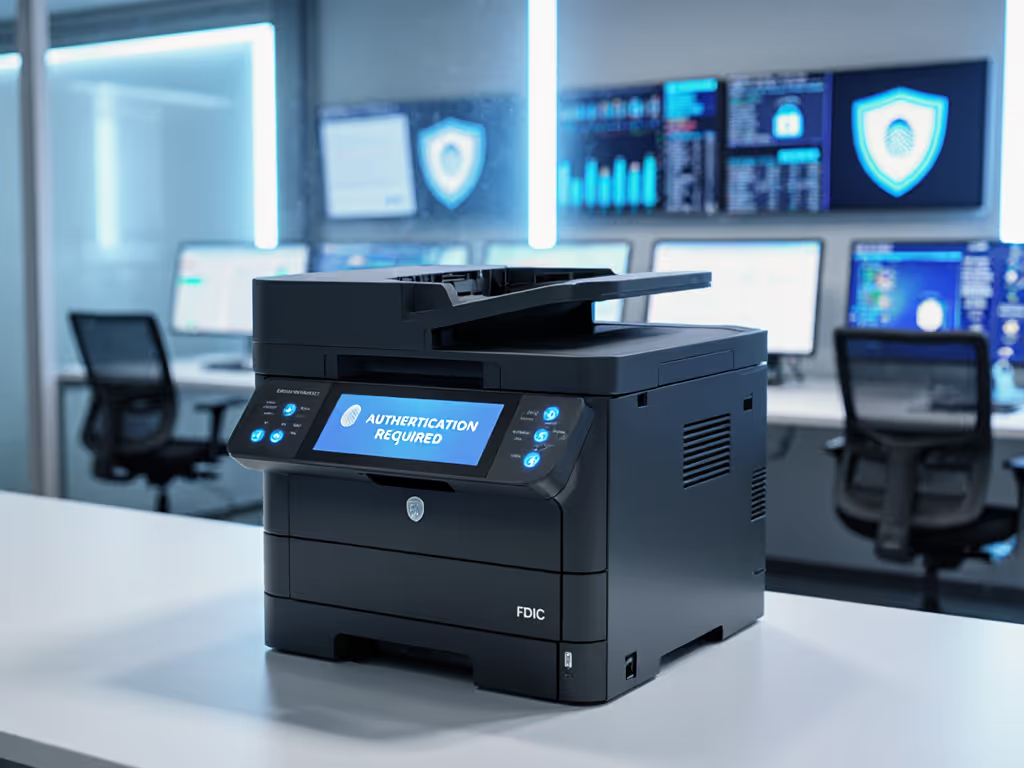
Without office workflow queue policies, color printing becomes a cost runaway: users print in color by reflex when B/W suffices. Implement defaults: black-and-white, double-sided, single-sided only on request. Require PIN or badge release on pull printers to eliminate orphaned jobs and reduce paper waste. Log every job (username, document name, page count, timestamp, success/failure status) to a centralized audit trail. This creates two effects: natural accountability deters wasteful habits, and data informs cost allocation (charge departments by actual usage). A financial services firm reduced color printing volume 35% in three months by enabling PIN-required release and showing teams their print spend versus peers.
Gaining Visibility: Logging, Monitoring, and Control Mappings
Q: Why is queue visibility harder than expected, and what should we actually log?
Printers ship with minimal logging enabled by default; job details often stay local to the device and vanish after reboot. To achieve observability, configure syslog export on every device: capture submission events (user, source IP, job name, page count), outcome events (completed, failed, jammed, out-of-toner), and maintenance events (toner low, drum expired, firmware updated). Route logs to a SIEM or centralized log management tool (Splunk, ELK, Azure Monitor). This creates a searchable, immutable record. If an invoice didn't print, you can trace exactly why and when. Control mappings matter here: log retention policies map to regulatory hold periods (HIPAA 6 years, PCI 1 year), and log export validates compliance during audits. I've seen teams recover from assumed "printer failure" by simply exporting queued-but-not-sent jobs from logs and resubmitting them within minutes... zero actual equipment failure, just invisible stuck software state.
Q: How do I detect and resolve bottlenecks before users complain?
Alerts on queue depth, job age, and failure rates prevent silent outages. If the print queue average job age exceeds 10 minutes, alert. If failure rate jumps above 3%, alert. If a specific printer hasn't reported status in 30 minutes, alert. Proactive thresholds let IT intervene before helpdesk tickets spike. A dashboard showing queue depth, average resolution time, and device availability by location provides the data-driven view operations leaders demand. One mid-market logistics company reduced print-related downtime from 2.3 hours/week to under 12 minutes/week after instrumenting queue depth alerts and assigning an on-call tech to address alerts within 5 minutes.
Optimization: Sizing, Routing, and Smart Defaults
Q: How do I match queue throughput to actual office demand?
Queue wait time is directly tied to device throughput versus arrival rate. If users submit 200 jobs per hour but your fleet can only process 180, the queue grows indefinitely. Calculate average daily pages per user, peak-hour arrival rates, and duty cycle of candidate devices. If duty cycle specs are confusing, read our duty cycle explainer to match capacity to real workloads. Right-size the fleet so peak load sits at 60-70% of maximum capacity (headroom for jams, maintenance, and variance). Distribute devices by role: a fast central printer for high-volume areas, smaller multifunction units in departments with mixed scanning/copying/printing needs. Segment queues by device type (color printers separate from B/W to avoid bottlenecking) and geography (one device per ten users is a rough rule, adjusted for duty cycle).
Q: What about remote and hybrid workers - how do I manage their queue experience?
Cloud print management, integrated with identity (Azure AD, Google Workspace), enables remote users to find the nearest available device, submit jobs, and retrieve them securely via pull/PIN release. For implementation details, see our guide to secure cloud printing with Microsoft 365 and Google Workspace. Without cloud integration, remote workers either print via VPN (slow, high latency) or bypass managed infrastructure entirely (security and compliance risk). Cloud-native queue systems log remote submissions equally, applying the same prioritization and cost-allocation rules. Organizations with distributed teams report 45% fewer print-related helpdesk tickets after switching to driverless, cloud-managed queuing.
Q: How do defaults and controls reduce queue problems at the source?
Locked-in defaults (duplex on, B/W on, smallest font size that meets readability) reduce waste and queue load. Disable hold-release printing for unauthenticated devices; require PIN or badge scan to prevent orphaned jobs. Deprecate legacy protocols (IPP/1.0, LPR) in favor of signed, encrypted channels (IPP-over-HTTPS, OAuth 2.0 with device identity). Not sure which standards to enable? Start with our printer connectivity protocols guide for security and compatibility best practices. This isn't just security theater; it's operationally cleaner: fewer stuck jobs, fewer malformed submissions, fewer protocol-induced timeouts that block the queue. Assume compromise; verify controls by auditing which devices and users can submit directly, which ones route through authorized print servers, and which require additional authentication.
Actionable Next Steps
- Audit Your Current Queue State: Document every printer, its queue logging level, spooler health check status, and average job age. Identify which devices lack syslog export... those are information blind spots.
- Establish Queue Monitoring: Enable syslog export on all devices this month. Aggregate logs to a central tool and set alerts for queue depth >15 jobs, average job age >5 minutes, and failure rate >2%. Start with a simple dashboard showing queue status by floor or department.
- Define and Test Queue Policies: Segment users into at least two priority tiers (urgent and standard). Implement PIN-based release on at least one device and measure adoption and job abandonment metrics over two weeks.
- Map Controls to Compliance Needs: If HIPAA, PCI, or SOC 2 audit is on the horizon, document your log retention, access controls (who can submit?), and encryption status. Evidence links between policy and device configuration close audit gaps faster than anecdotes.
- Review and Tune: After 30 days of data collection, compare actual queue metrics against your targets. Adjust device assignment, tier thresholds, or duty cycle expectations based on real patterns, not assumptions.
Queue management isn't glamorous, but it directly protects uptime and cost predictability. Start with visibility; controls and optimization follow naturally from observable data.
Related Articles