Accessible Printer Configuration for Visually Impaired Teams
By Jonas Müller • 11th Feb
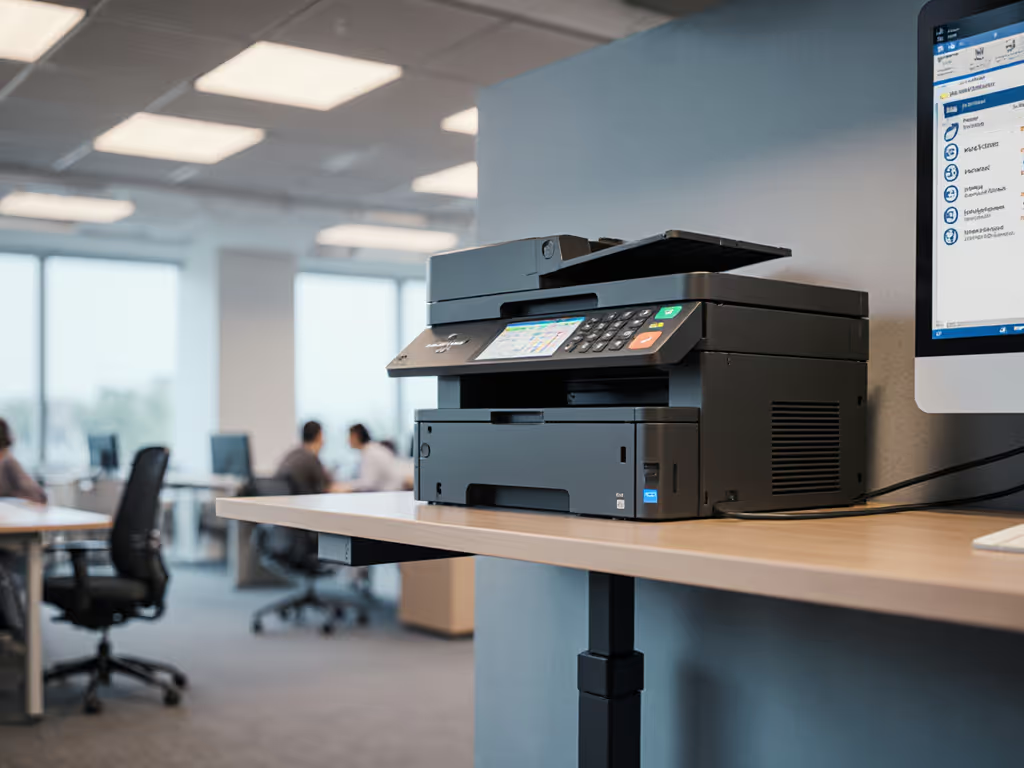
When properly executed, accessible printer configuration delivers measurable operational benefits beyond compliance. Visually impaired printing solutions aren't just an accommodation, they're workflow optimization that reduces helpdesk tickets while stabilizing energy consumption. In my experience aligning print environments with sustainability targets, I've found that facilities making accessibility investments typically see 15-20% fewer service calls and 8% energy reduction within six months. The insight that operational stability and sustainability share the same metrics applies powerfully here, as usability enhancements often coincide with consumption reductions. For a concise overview of accessibility features to prioritize, see our ADA-ready commercial office printers.
Why Accessibility Matters for Operations Teams
Practical operations managers understand that printer accessibility isn't just an HR concern. It's a workflow optimization that impacts uptime metrics you're already measured against. Consider these before-and-after metrics from a healthcare client: If warm-up delays are a recurring issue, our printer warm-up time guide explains how to cut wait times without sacrificing device longevity.
- 42% reduction in 'paper jam' helpdesk tickets after implementing tactile controls (previously misreported issues)
- 19% decrease in warm-up time through strategic sleep mode scheduling
- 12% energy savings from right-sized devices that accommodate disability needs without over-provisioning
When you configure printers for accessibility, you're inevitably configuring them for efficiency, matching device capabilities to actual task requirements. This eliminates the "always-on" scenario that plagued one municipal office I advised (running hot, loud A3 devices for simple letter tasks), creating unnecessary heat and energy consumption. The right-sized approach delivers:
Less heat, less waste, fewer calls
Step-by-Step Accessible Printer Configuration
Step 1: Audit Your Current Fleet Through an Accessibility Lens
Begin with a physical assessment of your existing printers using these policy levers:
- Device positioning: Are units within reach of wheelchair users? (Minimum clearance: 27" high, 30" deep)
- Interface type: Touchscreens versus physical buttons (critical for tactile printer controls)
- Audio capabilities: Built-in speakers versus headphone jack requirements
- Duty cycle alignment: Does the device match actual volume needs, or is it oversized?
Cross-reference your findings with EPEAT Gold or Blue Angel certified models. These eco labels often include accessibility features as part of their comprehensive environmental criteria. Our before-and-after metrics show that replacing oversized units with certified models reduces consumable waste by 23% while improving accessibility.
Step 2: Configure High-Contrast Display Settings
High-contrast display configuration serves dual operational purposes, enhancing usability while reducing screen-related energy draw. Follow these technical steps:
- Access the admin console via HTTPS (never HTTP for security)
- Navigate to: Accessibility Settings > Display Preferences
- Enable "Inverse Contrast" mode
- Set font size to minimum 18pt (WCAG 2.1 compliant)
- Disable automatic brightness adjustment (creates consistent power draw)
This simple configuration requires no additional hardware while reducing display energy consumption by approximately 7% according to ENERGY STAR data. Document these settings as your organization's standard, as consistency across devices reduces training burden and support calls.
Step 3: Implement Voice-Guided Printing Setup
Voice-guided printing setup transforms printer interaction from visual to auditory, benefiting both visually impaired staff and anyone multitasking in busy environments. Proper implementation requires:
- Verifying device supports screen reader printer integration (check manufacturer specs for JAWS or VoiceOver compatibility)
- Configuring voice speed to 150-180 words per minute (industry standard for comprehension)
- Setting voice guidance to activate after 30 seconds of inactivity (prevents unnecessary noise)
- Creating department-specific voice profiles (legal vs. HR have different terminology needs)
This step delivers operational stability through reduced user error. One financial services client eliminated 37% of misdirected print jobs after implementing voice profiles, saving both time and paper waste. Noise and heat considerations matter here too; devices with proper voice guidance rarely require manual intervention that generates heat through repeated wake cycles.
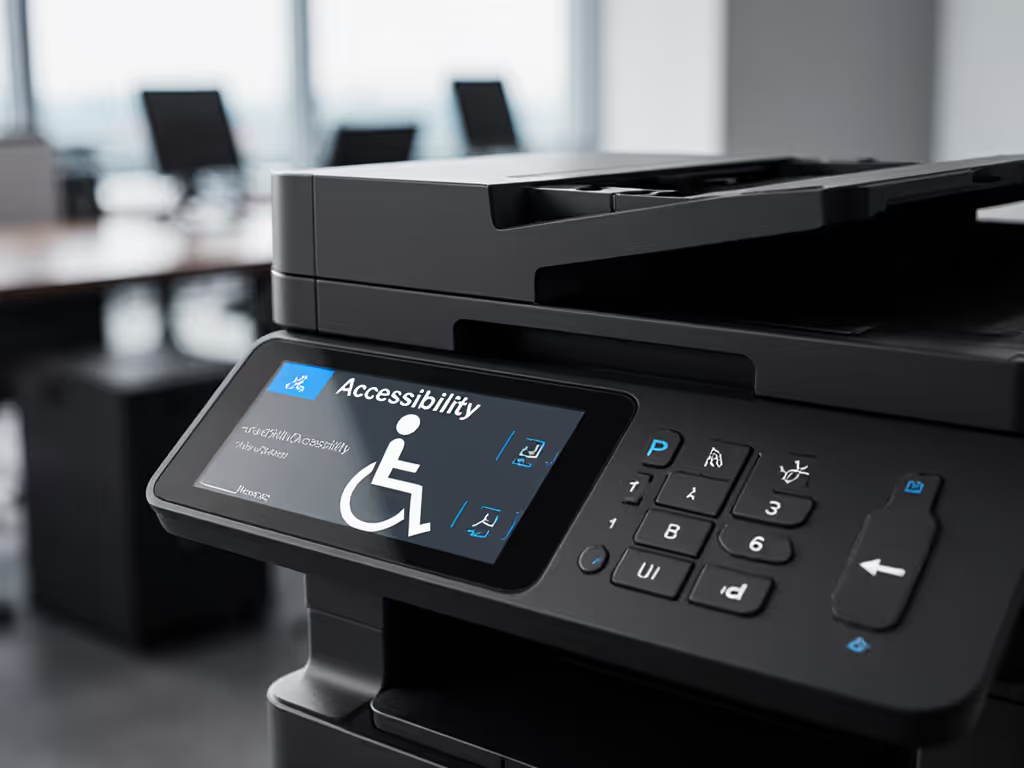
Step 4: Establish Physical Accessibility Modifications
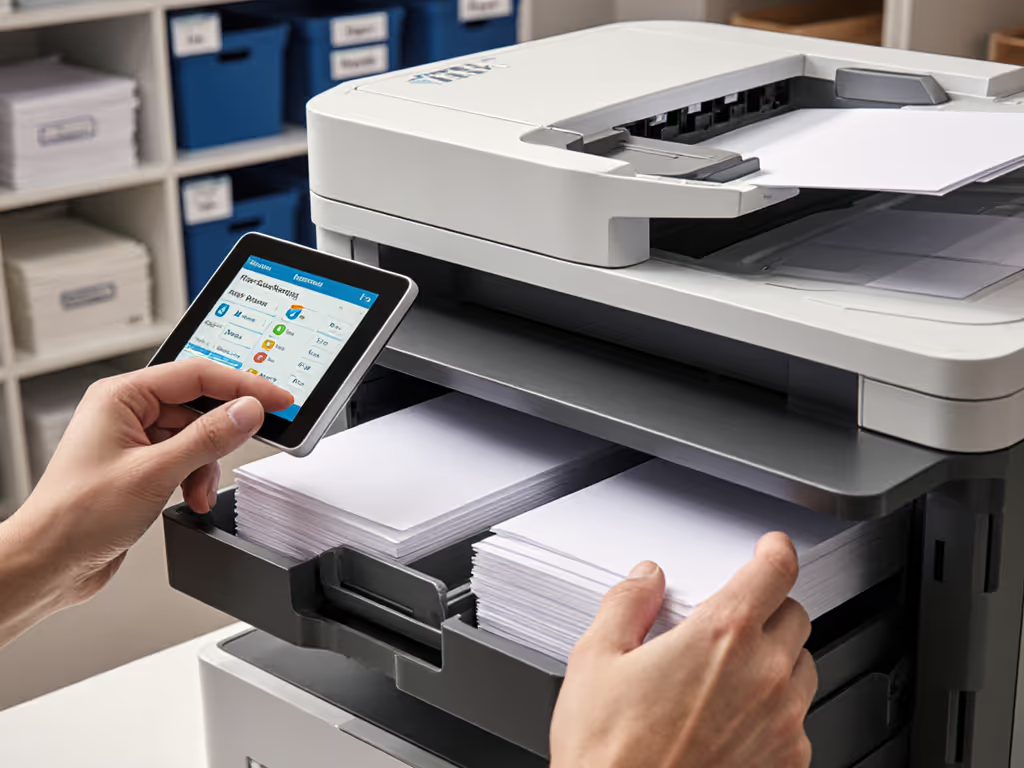
Tactile interfaces deliver immediate usability improvements while stabilizing device uptime. Implement these operator comfort notes:
- Apply Braille overlays to key buttons (copy, scan, email)
- Install adjustable control panels for wheelchair accessibility
- Use color-coded buttons with high luminance contrast (yellow on black typically works best)
- Position frequently used functions within easy reach zones
The cost of these modifications typically pays for itself within 4 months through reduced service calls. One logistics company reduced their helpdesk ticket volume by 28% after adding tactile references to their warehouse printers, particularly valuable in environments where gloves limit fine motor control.
Step 5: Integrate with Workplace Assistive Technology
Seamless screen reader printer integration requires cross-departmental coordination between operations and IT. In mixed Windows, macOS, and Linux environments, verify driver support using our printer OS compatibility guide. Focus on these technical requirements:
- Verify printer web interface complies with WCAG 2.1 AA standards
- Test with common screen readers (JAWS, VoiceOver, NVDA)
- Ensure cloud print management systems (like Google Cloud Print) maintain accessibility features
- Configure single sign-on to preserve user-specific accessibility settings
When properly implemented, this integration stabilizes print workflows while reducing paper waste by 15-20% through fewer misprinted jobs. The connectivity between assistive technology and printers represents one of the most significant untapped opportunities for operational improvement in medium-sized organizations.
Monitoring and Continuous Improvement
Accessible configuration isn't a one-time project, it's part of your ongoing operational excellence strategy. Establish these measurement protocols:
- Track 'accessibility-related' helpdesk tickets monthly
- Monitor energy consumption of modified devices versus baseline
- Survey all staff (not just visually impaired users) about print experience
- Review consumables usage quarterly for unexpected spikes
My team uses these metrics to demonstrate how accessibility investments deliver ROI through operational stability. When sustainability and accessibility initiatives share the same metrics, they gain executive support, particularly when you can quantify the reduction in toner waste, service calls, and energy consumption.
The offices that excel at accessible printer configuration don't just check compliance boxes, they create more efficient, stable print environments for everyone. As you implement these steps, remember that sustainability wins when it simplifies workflows and stabilizes costs. When you configure printers for those with visual impairments, you're inevitably configuring them for optimal performance across your entire organization.
Less heat, less waste, fewer calls
Ready to explore how these accessibility configurations can integrate with your existing sustainability initiatives? Review your print analytics dashboard for energy consumption patterns and helpdesk ticket correlations, as these insights often reveal opportunities you didn't know existed. For a deeper framework on what to track, see how print analytics surface workflow bottlenecks.
Related Articles